
Guide to Add-Ons
What is a Product Add-on?
Suppose you are selling a special custom witch kit; people might need additional features or an extra set of something. Without a Product Add-on, you may have to adjust the price of these items per listing. With the product add-on feature, customers can have the option of selecting additional ‘add-ons’ when buying a product and pay extra for those features.
How do I create product add-ons for my shop?
Go to your dashboard and click on Products. Click Edit options on any of the products. Then, save the settings of your products. Click on View Product.
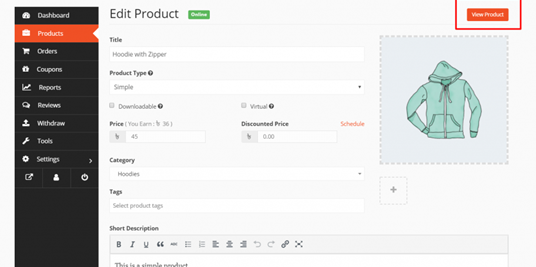
Now you can add add-ons for that product.
Per-product add-ons
You can edit individual products to include product add-ons. Per-product add-ons only display for the product they are added to.
To do this, go to the Edit page of the product. Then scroll down. you will find the Add-on option. Edit those options to make an individual add-on for that particular product.

Important Note: Add-ons can be applied to variable products but can only be defined at the product level. Example: You cannot have an add-on for a specific variation of a variable product — for a blue shirt only.
Add-on Examples
Multiple Choice
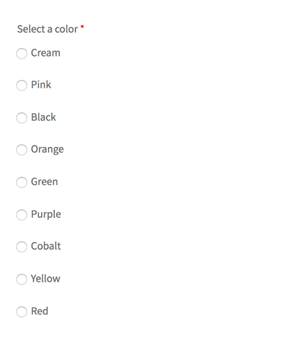
Customers choose only one option from a set of predefined options. For example: Colour or size.
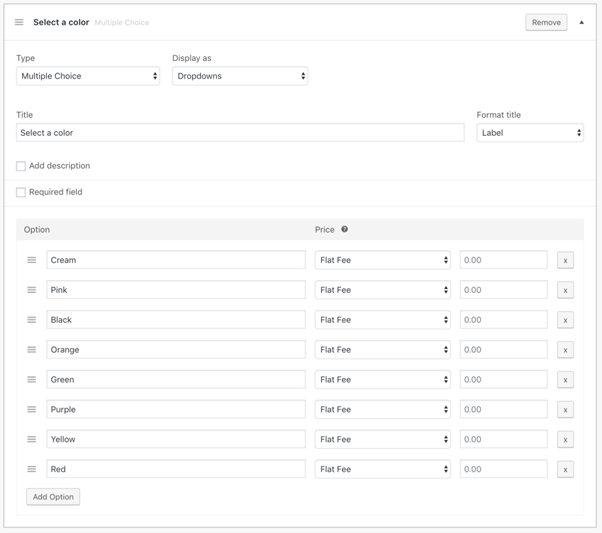
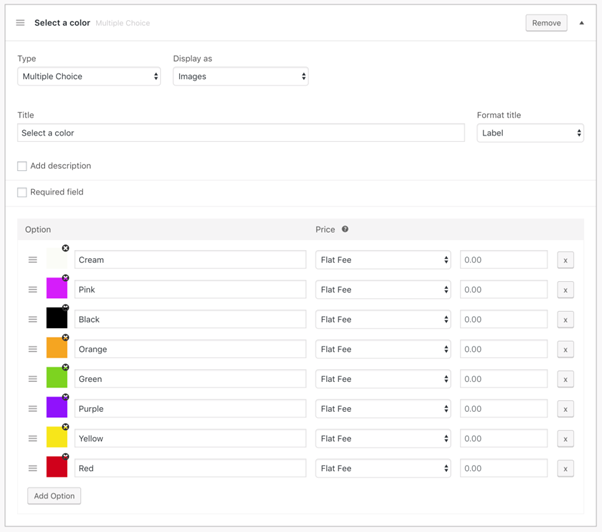
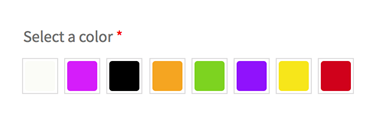
If the display option is set to images, an image upload icon will show up next to each option.
Radio buttons
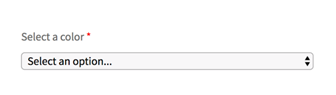
Drop down
Images
Check boxes

Customers choose one or multiple options. For example: Gift wrapping, card, or upgrades.
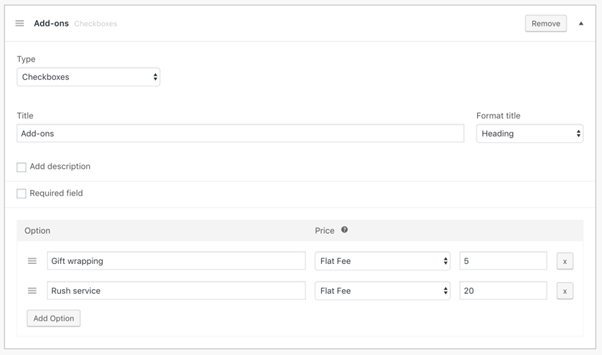
- Title: Format the title as a Label or Heading, or hide it.
- Add description: Displays more information about the add-on underneath the heading.
- Required field: Prevents product from being added to the cart if an option is not selected.
- Options: Add a label for each option as well as a price if needed. Calculate the price as a flat fee regardless of quantity, per quantity ordered, or, charge a percentage of the base price.
Note: You must add a Label for each option, so the information shows when viewing the order and is passed through in the confirmation email to the customer.
Short text
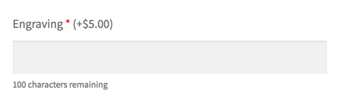
Customers can enter a single line of text. Examples: Email address, names, and engraving text.
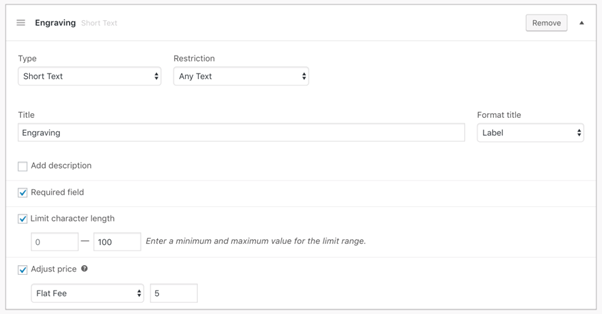
- Title: Format the title as a Label or Heading, or hide it.
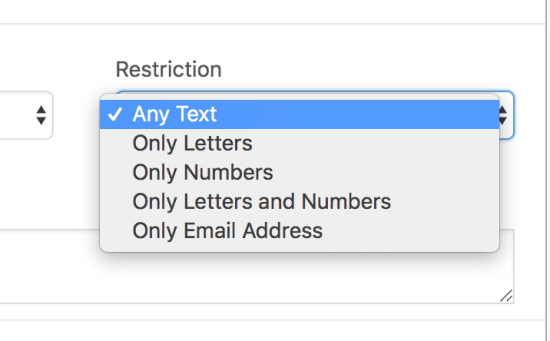
- Restriction: Limit the type of characters customers can enter from Any Text, Only Letters, Only Numbers, Only Letters and numbers, only Email Address.
- Add description: Displays more information about the add-on underneath the heading.
- Required field: Prevents product from being added to the cart if the field is empty.
- Limit character length: Specify the minimum/maximum number of characters.
- Adjust price: Add an additional cost to the add-on. Calculate the price as a flat fee regardless of quantity, per quantity ordered, or, charge a percentage of the base price.
Long text

Customers can enter multiple lines of text. Examples: A gift note, an address, or special instructions.
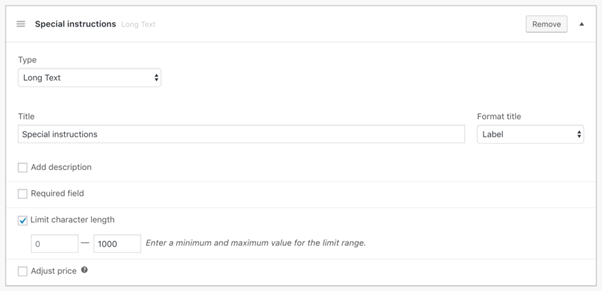
- Title: Format the title as a Label or Heading, or hide it.
- Add description: Displays more information about the add-on underneath the heading.
- Required field: Prevents product from being added to the cart if the field is empty.
- Limit character length: Specify the minimum/maximum number of characters.
- Adjust price: Add an additional cost to the add-on. Calculate the price as a flat fee regardless of quantity, per quantity ordered, or, charge a percentage of the base price.
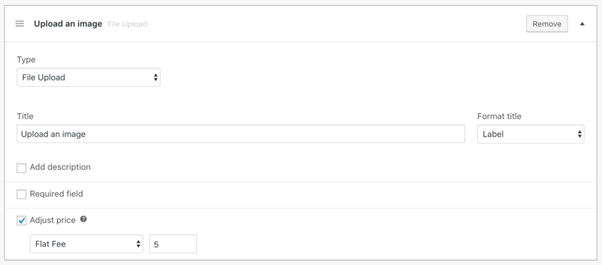
File upload
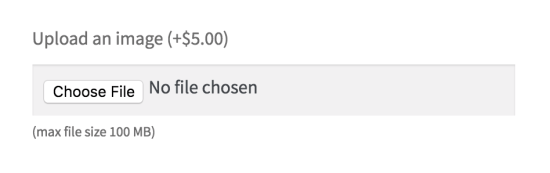
A customer can upload their own file. Example: To create custom designs on t-shirts, mugs, or business cards.
Customer-defined price
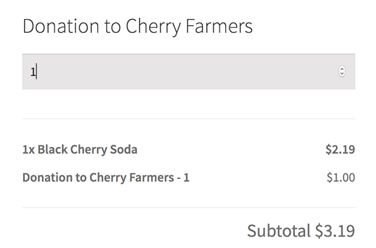
A customer can set their own price, which is added to the base price. This can be appropriate for donations or tips.
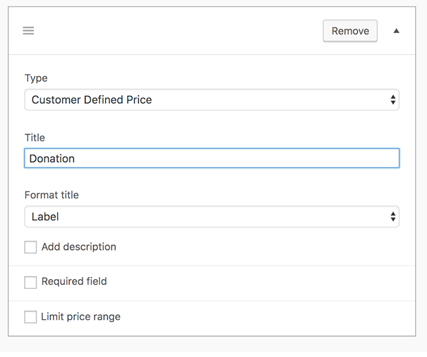
- Title: Format the title as a Label or Heading, or hide it.
- Add description: Displays more information about the add-on underneath the heading.
- Required field: Prevents product from being added to the cart if the field is empty.
- Limit price range: Specify the minimum/maximum price.
Quantity
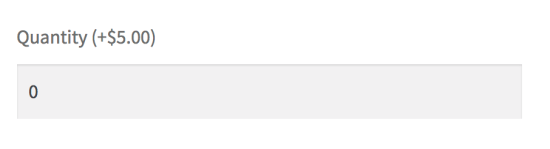
This is how customers would select a quantity when ordering additional items that go with the main product.
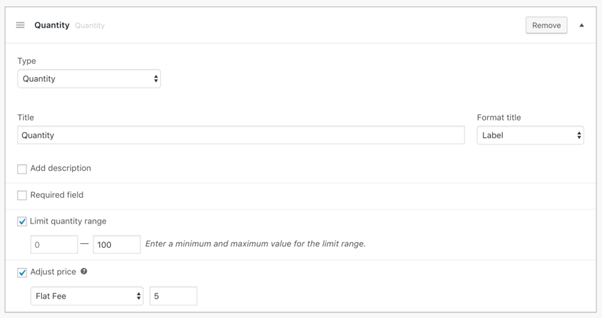
- Title: Format the title as a Label or Heading, or hide it.
- Add description: Displays more information about the add-on underneath the heading.
- Required field: Prevents product from being added to the cart if the field is empty.
- Limit quantity range: Specify the minimum/maximum quantity.
- Adjust price: Add an additional cost to the add-on. Calculate the price as a flat fee regardless of quantity, per quantity ordered, or, charge a percentage of the base price.
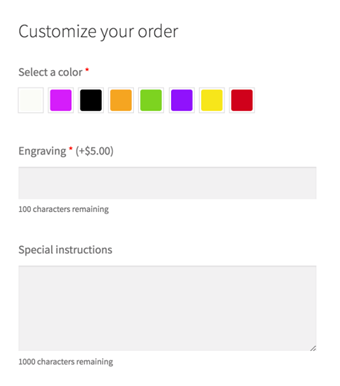
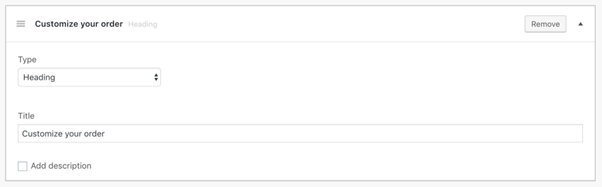
Heading
Use headings to separate your add-ons into sections.
Pricing
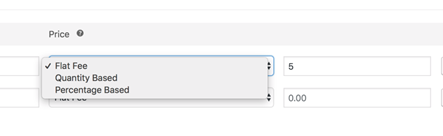
Prices can increase or decrease the total cost of the product. Three price options are available:
- Flat fee: Price applied only once, regardless of the quantity ordered.
- Quantity based: Price is multiplied by the product quantity.
- Percentage based: Calculates a percentage of the base price.
Add-on actions
Re-order add-ons
You can change the order of add-ons displayed within groups by dragging and dropping.
Importing and exporting add-ons
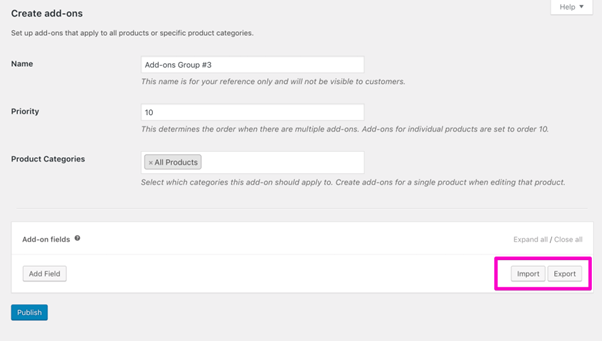
Add-ons can be exported and imported using the buttons when editing a per-product or global add-on. Click ‘export’ to export the existing fields as serialized data. Then click import to paste the serialized data and append them to your existing add-ons.
Import and Export are also available for Global Product Add-Ons.
Add-on FAQs
Add-on Video Walkthrough
Why doesn’t my upload add-on field work?
This can be due to the length of the field name. Try to reduce the document name length.
Can Product Add-Ons be imported via the Product CSV Import Suite?
No, Product Add-Ons are made up of complex serialized meta data that would be difficult to do in a product CSV row as plain text. CSV Import can only import meta that is unserialized unless otherwise stated. However Product Add-Ons itself allows you to import and export settings.
Can an add-on have a separate SKU for sales/tracking purposes?
No. An add-on is treated as an option, not a separate product. Products and their variables have SKUs.
Can I add custom fields to variable products?
Yes! Here is a sample:
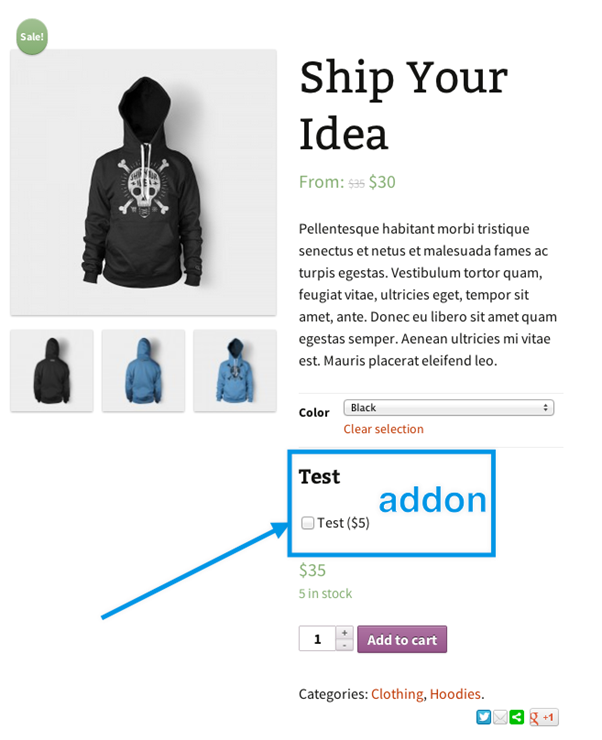
Note: Add-ons can be applied to variable products, but can only be defined at the product level. Example: You cannot have an add-on for a specific variation of a variable product (e.g. for a blue shirt only).
Can I apply product add-ons once to the product, no matter the quantity ordered?
Yes. Product Add Ons have a flat fee feature.
Why are my add-ons blank?
This is likely to be due to not clicking Save, after adding/deleting/editing any fields.
Can Product Add-Ons be used to apply a discount
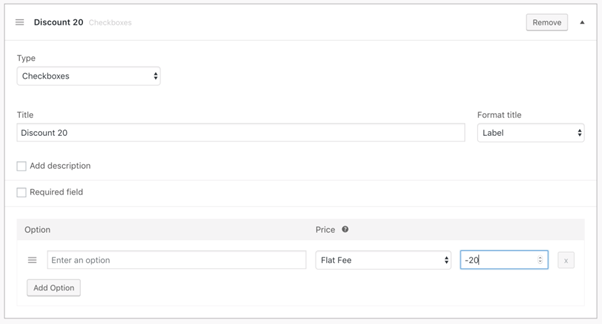
Yes! Product Add-Ons can be configured to reduce the price of a product – just add a negative value to the price field:
Are add-ons compatible with Baphomart Bookings?
Yes!