
Guide to setting up your shipping
At Baphomart we have a number of different shipping options to maximise the potential of each shop. Each method is designed to provide high-end capabilities and enable use for all levels of businesses. Shipping can be a complicated endeavor to get your head around so in this guide we will explain what each shipping method means, and details of how to set each one up.
You must designate one shipping profile as your default shop-wide shipping profile. The default shipping profile can be changed by going to Dashboard > Settings > Shipping and by selecting an option from the default column, and then selecting ‘Save Changes.’ This default shipping profile is used for products unless another is selected to override it in the ‘edit product’ shipping section (further details below).
Default Shop-Wide Shipping Methods
We are going to explain the main shipping options or click for the Advanced Shipping – Live Rates.
Choose one of the following options as your default shop-wide shipping methods:
- Free Shipping – This option makes all shipping free.
- Shipping Zones – This option is our prefered method and enables you to add your shipping rates by geographical zone.
- Live Shipping rates – explored in this article
1. Free Shipping
Free shipping is a great way to encourage customers to spend more. For example, offer free shipping on orders over £100.
The Free Shipping method is very simple. When selected, shipping will not be charged for the product. It’s perfect for sellers who want to ship their products for free. It can also be used by those who want to add some of the shipping costs to their product instead and offer a more appealing option to ship for their customers. This shipping method has no store level or seller level settings to worry about.
Selecting this will mean the order or product being purchased will have “Free Shipping” if it is applied on top of the coupon code discount.
Please note: If you are creating a “Free Shipping” coupon (i.e. coupon that gives free shipping and no other discount) then you need to enter the discounted amount (Shipping amount) in the Coupon Amount and leave this unticked.
2. Shipping Zones (Setting your shipping rates by geographical region)
The Shipping Zones method allows you to set multiple flat shipping rates for each geographical region they ship to. We recommend this method for new sellers, it’s great for those who want to offer simple flat shipping rates and reuse those rates across multiple products. You can add a range of shipping prices depending on the delivery methods and costs, and even offer free shipping if you wanted for particular regions.
Example:
1-3 Business Days £10
5–7 Business Days £6
Next day delivery £15
14 Business days FREE
You can add your delivery times and pricing options for each region. You can also exclude areas within regions. Customer orders cannot be made for any regions you don’t include.
Follow these steps to set up shipping zones:
(please note: if you need a more detailed guide please check out our sellers handbook which has images for each step)
- Navigate to your Seller Dashboard, then go to Settings, and Shipping from the menu.
- Scroll down to “Shipping Methods” and select “Shipping Zones – Use the shipping rates and methods defined in your Shipping Zones.”
- Click on Save changes and then click on the Configure button to the right.
- Here you will see options to add shipping methods to each geographical zone. Select Add Shipping Method next to any zone where you want to apply a set shipping method.
- Click the red Add Shipping Method button at the bottom of the screen
- Select Flat Rate from the drop down menu and then click the black Add Shipping Method button
(Note: You can also select Free Shipping option here and create it so it appears when customer order’s something above a certain value) - To customise the rate, click Edit on the left
- Complete your shipping cost details in the dialogue box as prompted
- Click Save Settings to complete the process
You add as many shipping options as you like, and will need to repeat this process for every region you ship to.
In each region, you can limit your shipping to a particular area by selecting ‘Limit your zone location’ and selecting a country / postcode.
There’s also a handy “Everywhere Else” region option that can be used when the shipping cost is the same in all but a few places.
Video Guide on setting up Shipping Zone rates
How do I adjust shipping according to the quantity of an order?
To set discounts or additional rates depending on the number of items being shipped, follow the above instructions to #7.
You should get to this pop up:
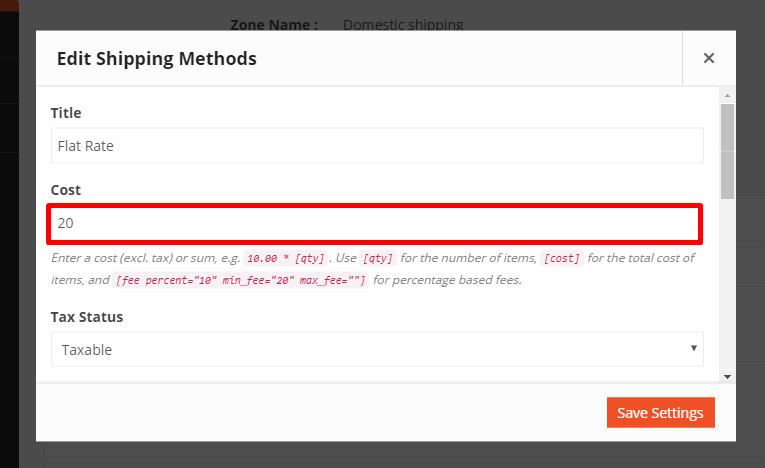
Shipping Cost Formula
The Cost field allows you to charge a flat rate per item, a percentage based cost or a minimum fee.
Available placeholders:
- [qty] – Number of products in the cart
- [fee] – An additional fee. This fee has two optional arguments.
- percent – A percentage based on total order cost.
- min_fee – A minimum amount. Useful when using percentages.
- max_fee – A maximum amount. Useful when using percentages.
Examples
10 + ( 2 * [qty] )– A base shipping cost of $10 plus $2 for each item in the cart.20 + [fee percent="10" min_fee="4"]– A base shipping cost of $20 plus 10% of the order total, which is at least $4.
Adding Shipping Classes
If you have products that don’t fit your default store-wide shipping rates as they require an additional rate due to the nature of the packaging such as medium, large, tube, and fragile parcels, or they require special packaging due to value. You may want to customise each of these parcel costs (also known as shipping classes), follow this article on how to add your Shipping Classes.
Need some help?
If you need some assistance setting up your shipping zones, classes, live rates, or anything else please get in touch via our Support Desk.