
What does each field mean in the Edit Product page?
Here’s our quick breakdown of what each field does with hyperlinks to the related articles for you to explore further.
Let’s get start! If you head to your Dashboard and select Products, you will see the ‘Add Product’ button. Once you select that you are taken to the add product window. It looks something like this:
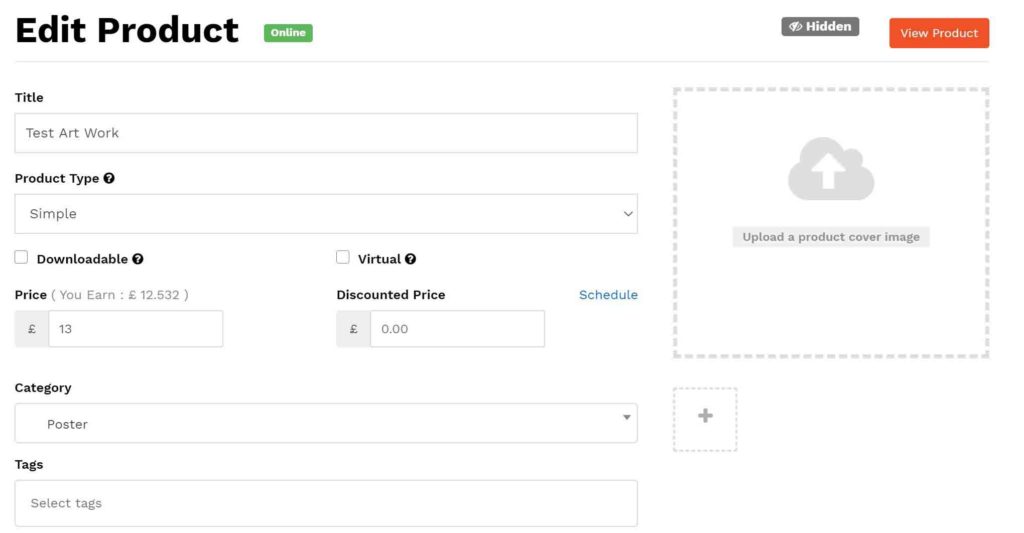
Product Name – What the product is called.
Price – The price of the product.
Discount Price – The new price it’s on sale for (only if applicable, for example if you have a sale).
Upload Product Image – Click this to add your product image.
Short Description – Add here a quick overview of the product with some useful key bullet points.
Category – Add which category the product fits best (or several).
Tags – Tags are an opportunity to help match keywords with customer’s searches.
Description – Add a detailed more in-depth description of the product here.
Upload a product cover image – You can select your featured image, and add more images of your product.
Product Type – the type of product you are listing (simple or variable).
Downloadable – Downloadable products give access to a file upon purchase.
Virtual – Virtual products are intangible and aren’t shipped.
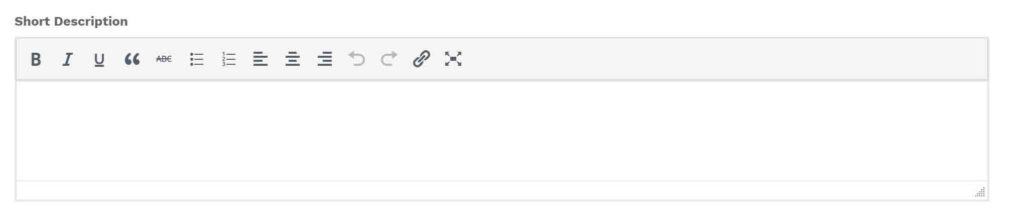
Short description – To make your product pop and easy to digest, use the short description to briefly mention what the product is and include and key bullet points such as size, style, materials, year, colour, make, model, or key highlights of the product.
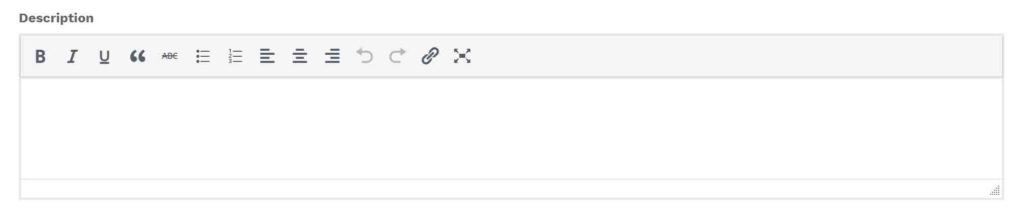
Long description – Really go in depth about the product here, how it was made, insights, details, interesting stories about it or how you made it. Make it seem irresistible!
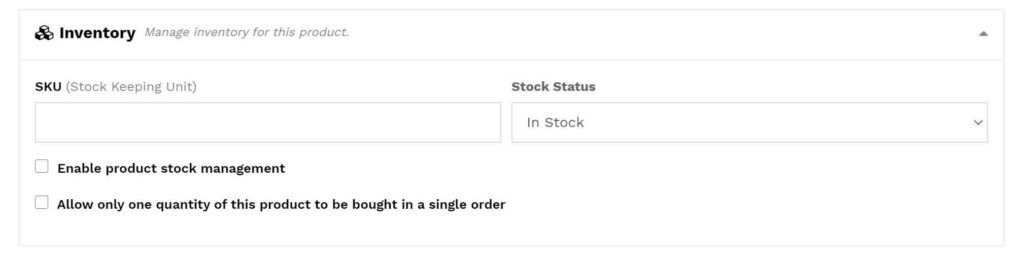
Inventory – This allows you to manage your stock inventory by adding SKU or Stock Keeping Unit number to each product. If you have variations you can also add SKU‘s to them.

Geolocation – This allows you to set the physical location for the item, useful for if you are shipping from a different location than your shop’s address.
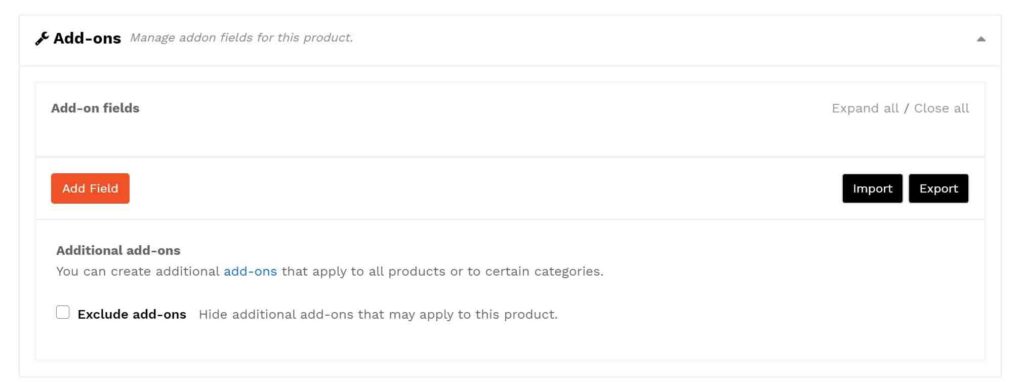
Add-ons – The product add-on feature enables you to create additional chargable extras or ‘add on’ when customers are buying a product.
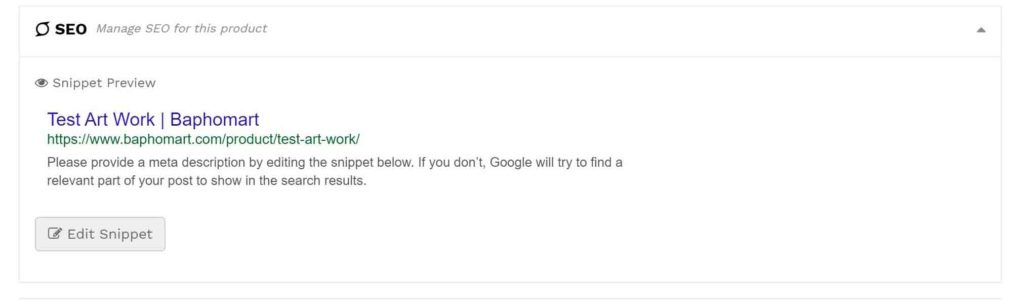
SEO – Product SEO or search engine optimisation allows you to edit what your product looks like when it’s searched for in search engines such as Google. Allowing it to be discovered more easily across the internet. You can also use this to change how the product link appears when shared on social media.

Linked Products – This allows you to upsell or cross-sell items in your product inventory. They will appear on your other selected product pages.

Attribute – This allows you to set attributes to a product such as colour, size or a custom attribute. Useful for customers searching for specific sizes/colours etc.

Discount Options – This allows you to set discounts for the product based on the bulk number of products purchased by a customer.
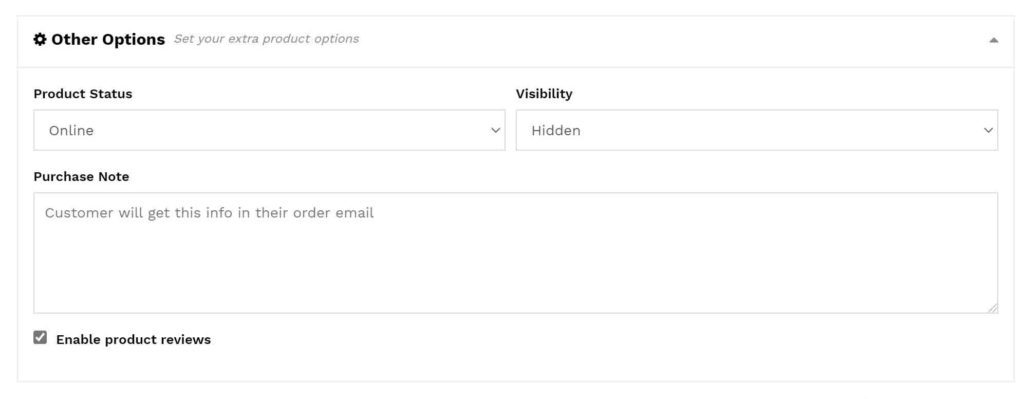
Other Options:
Product Status – Set to draft mode to allow further editing to the product before you set it to Online. Online products are added to the Baphomart marketplace.
Visibility – The visibility option defines the privacy of the product. By default “Visible” is selected. If you want the product to only appear on the category listing page, search results or want to list as a hidden product, then you can select the option respectively.
Purchase Note – If you want the customer to receive a custom message right after purchasing the product, you can add that in this box.
Enable product reviews – If you do not want to receive reviews from the customer for the product, you can turn it on or off here. We recommend you keep this selected as product reviews are good for your business, see our Seller Handbook article on reviews